Editing Documents
To get to an existing document to make edits there are two options. Either select the relevant type in the navigation sidebar, then select the document from the list (or search the list using the document list search), or using the header search bar you can search by title or any other attribute of a document to find what you are looking for.
Making changes is exactly the same as creating a new document. Just edit the fields you need to change and a new draft will be created. Previously published documents will remain the same until the draft changes are published much the same as a new document.
Live Editing
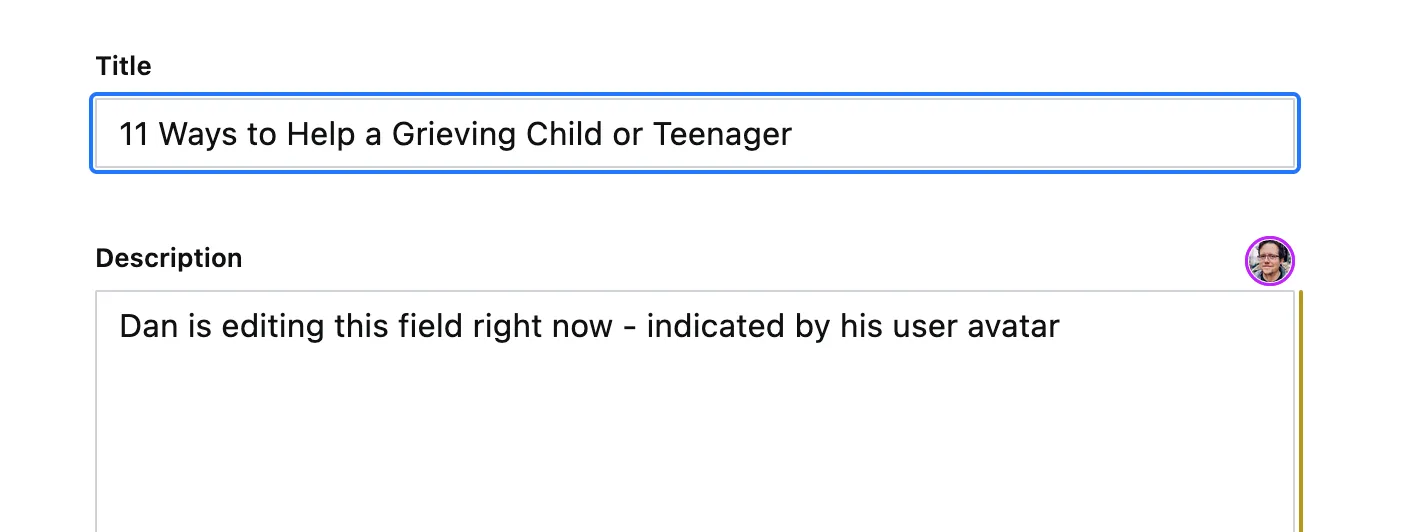
Changes made to Sanity documents are saved on the fly (or autosaved). This has two benefits. First, it means you do not have to worry about saving your changes. Second, it means that multiple people can actually work on the same document at once - and you will see the changes made by another team member in real time.
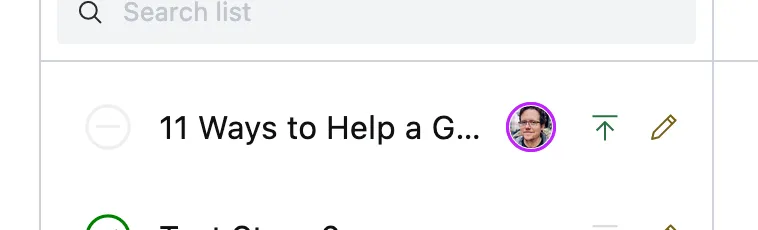
You can see where other team members are working by the appearance of their user avatar.
Document Revisions
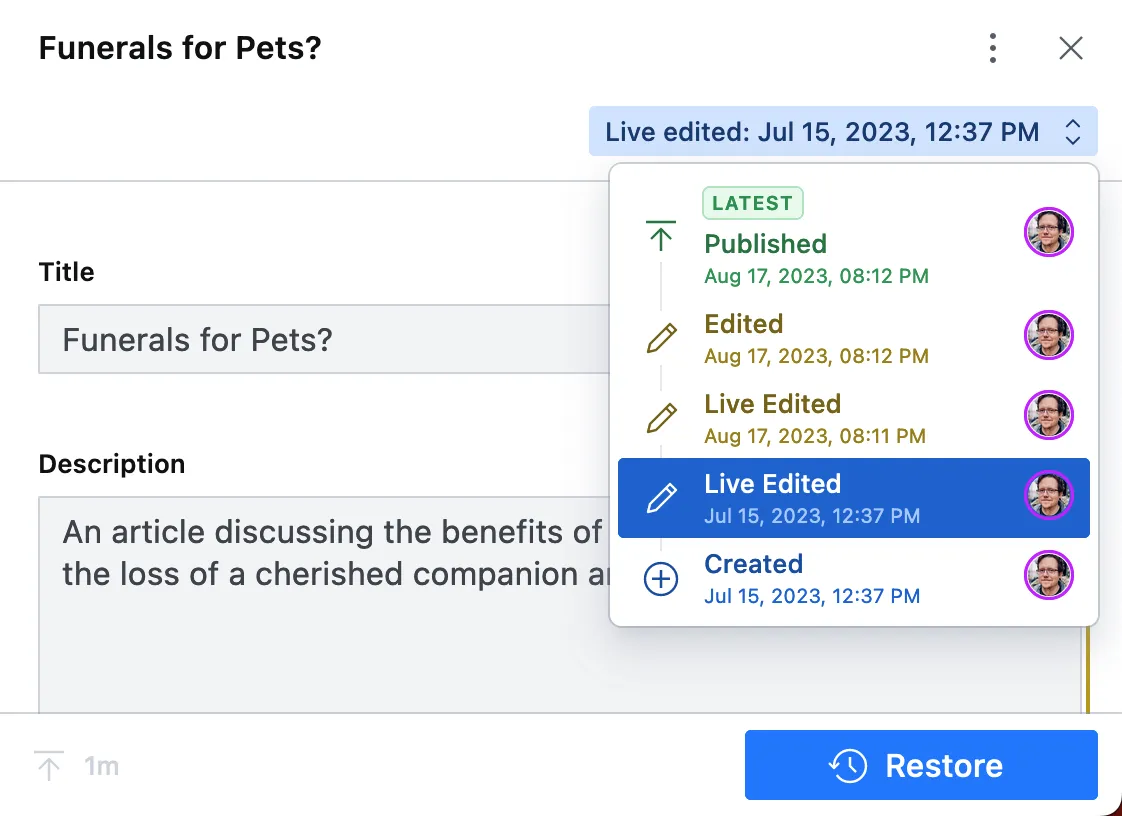
You can view and restore previous versions of a document. You can see the version you are currently viewing in the upper-right of the document editor.
By clicking the current document version you can inspect previous versions as well as restore to a previous version.
Just above this control, the ellipsis will also allow you to review changes between versions to give a better impression of how a document has changed over time.